Use Hawkeye with Canvas
Link a Canvas Classic Quiz to a Hawkeye exam, let Hawkeye control its access code and email the class.
If your school added Hawkeye to Canvas, you and your students open Hawkeye from Canvas. You do not need a Hawkeye password. Hawkeye works with Canvas Classic Quizzes.
Hawkeye protects the quiz with its access code. Hawkeye sets a new random code on the quiz. Students see the code only inside their own proctored session, so a student who skips Hawkeye cannot open the quiz.
A Canvas administrator must install Hawkeye first. If Hawkeye is not in your Canvas yet, send your administrator Install Hawkeye in Canvas.
Set up a quiz
Build the quiz in Canvas
Create a Classic Quiz in Canvas as usual. Set its time limit, dates and allowed attempts.
Add a Hawkeye assignment
Create an assignment. Set the submission type to External Tool and select Hawkeye.
Open the assignment
Open the new assignment. Select Open Hawkeye. Hawkeye opens in its own window.
Link the quiz
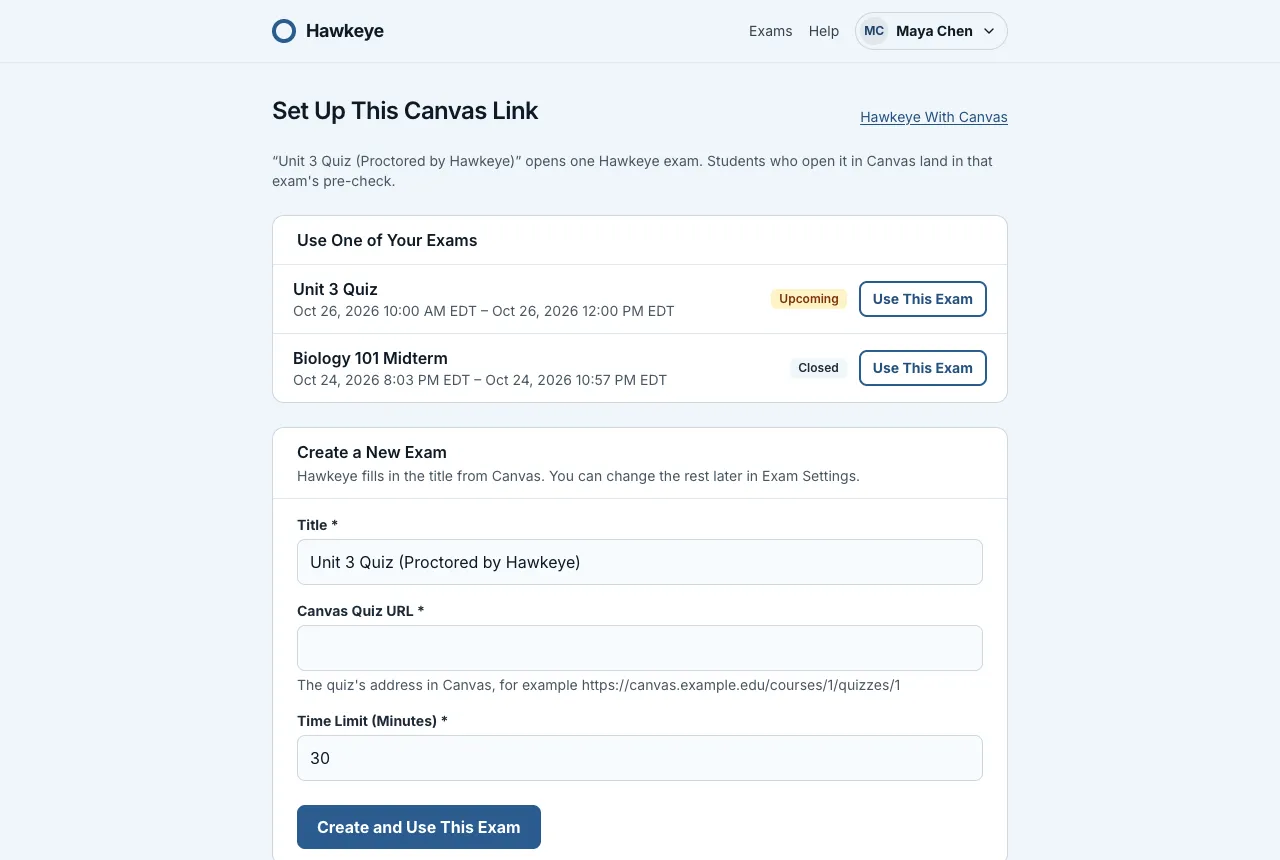
On the Set Up This Canvas Link page, select Use This Exam next to one of your exams. Each exam shows its status and dates. Or, under Create a New Exam, paste the Canvas Quiz URL and select Create and Use This Exam. Copy the address from the quiz itself in Canvas: it ends in /courses/…/quizzes/…. Hawkeye refuses any other address, because it can’t protect a quiz that isn’t on your Canvas site.
Connect your Canvas account
Hawkeye opens the exam’s Canvas section, a checklist of what is done and what to do next. Select Connect Canvas. Canvas opens: approve the request, and Canvas sends you back to Hawkeye. You do this only once.
When you connect Canvas, Canvas asks you to let Hawkeye read and update the quiz and read its submissions. Hawkeye then sets the access code on the quiz.
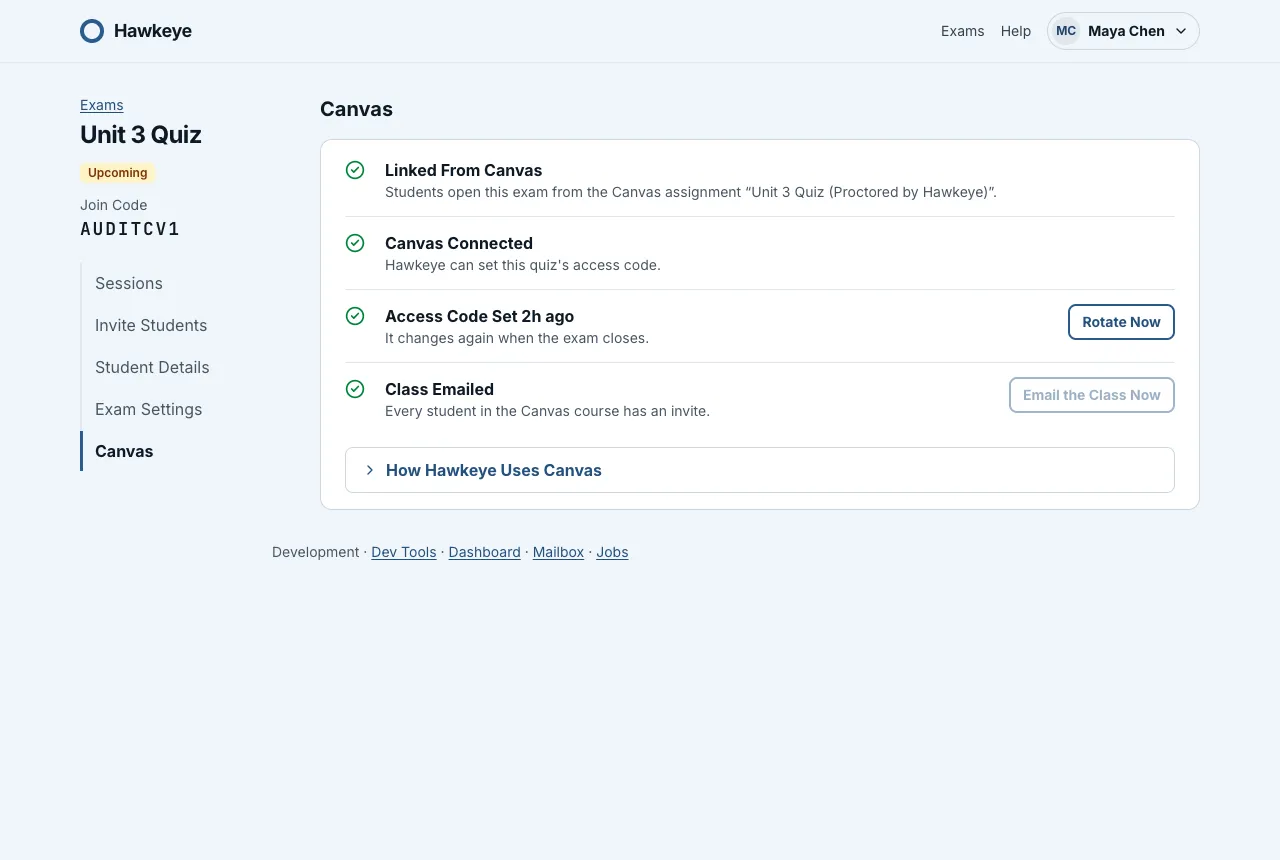
The access code
- Hawkeye changes the code when the exam window closes.
- To change the code at once, select Rotate Now in the Canvas section of the exam page.
Hawkeye follows the quiz
Hawkeye copies the quiz’s time limit, unlock date and lock date into the exam. It does this when it sets the code and each time a student opens the assignment. Change these settings in Canvas, not in Hawkeye. If the quiz has no time limit, the exam keeps its own duration.
Extra time that you give a student on the quiz in Canvas adds the same minutes to that student’s timer.
Attempts
Each Canvas attempt gets its own proctored session. The exam page lists each attempt as its own row. To give a student another attempt, use Moderate This Quiz in Canvas. Hawkeye has no retake button.
When Canvas reports that a student submitted the quiz, Hawkeye ends the student’s session. Read Review an attempt.
Email the class
Open the exam once from Canvas
Open the exam from its Canvas assignment. Hawkeye then learns the course and its class list.
Send the emails
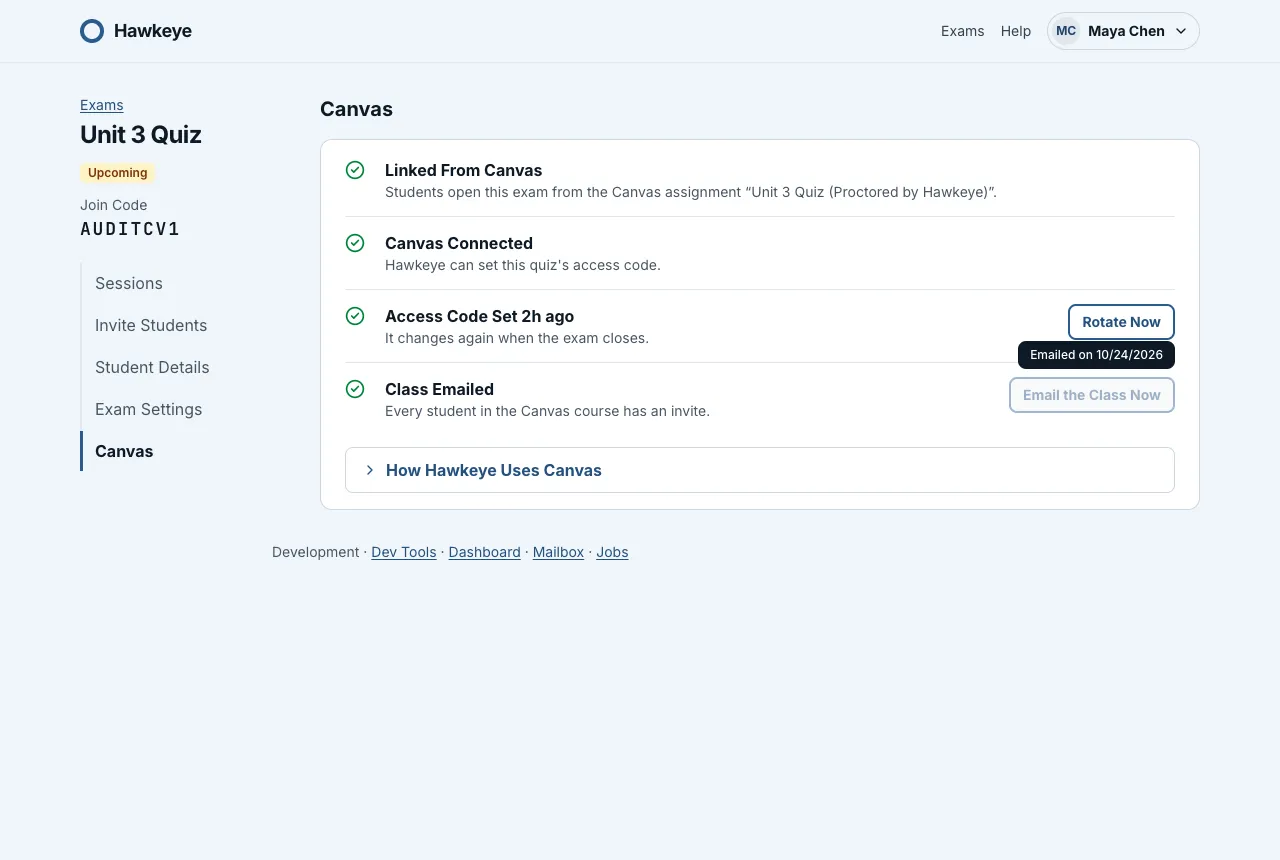
On the exam page, open the Canvas section. In the Class List Ready row, select Email the Class Now.
Each active student in the course gets one email with a link to the Canvas assignment. The email has no join code, because a Canvas attempt must start from Canvas. Hawkeye skips instructors and students who already have an invite.
After you email the class, the button greys out. Point at it to see the day you emailed the class. If a student joins the Canvas course later, the button works again, and the row says how many students are new. Select it to invite only them.
If the exam sends the “exam is open” email, these students also get it at the open time.
Sign in again later
Your Hawkeye account from Canvas has no password. To come back, select Hawkeye in your course menu in Canvas. It opens your exams list.
Good to know
- If your Canvas email address already belongs to a Hawkeye account with a password, Hawkeye does not open from Canvas. Hawkeye never joins the two accounts. Sign in to Hawkeye directly with that account.
- Only the instructor who first set up a Canvas link can use it. Another instructor of the course sees a message that someone else set it up.
- If you delete the exam, the Canvas link stays without an exam. Students see that the exam is not set up yet. Hawkeye does not change the quiz in Canvas.
- Review results stay in Hawkeye. Hawkeye does not send grades to Canvas.
Students can read Take an exam from Canvas.