See reports
Charts of your exams' attempts, ratings and flags, per exam, across your exams and per student, with filters for the flags you care about.
Reports show the shape of your exams in charts: how many attempts there were, how Hawkeye rated them, which flags came up and when. Hover over a chart to see its numbers. Select Show the Numbers under a chart to see the same numbers as a table.
Reports for one exam
On the exam page, select Reports in the menu on the left.
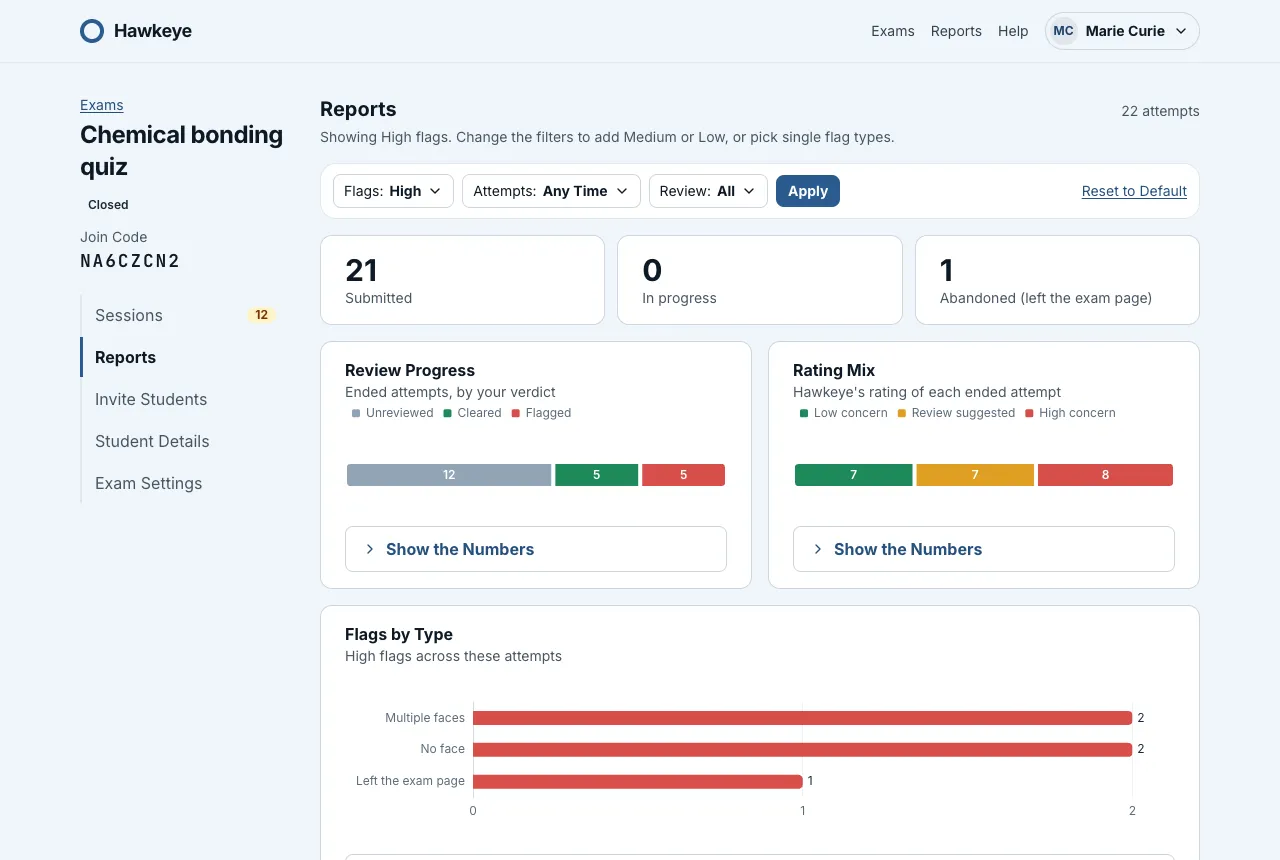
- Submitted, In progress, Abandoned: how many attempts are in each state. An abandoned attempt is one where the student left the exam page.
- Review Progress: the ended attempts you haven’t reviewed yet, the ones you cleared and the ones you flagged.
- Rating Mix: Hawkeye’s rating of each ended attempt: Low concern, Review suggested or High concern.
- Flags by Type: how many flags of each type came up, colored by severity.
- When Flags Happen: flags per minute into the attempt. A tall bar means many students were flagged at the same moment, for example at one hard question.
Choose which flags count
At first, reports count only High flags: No face, Multiple faces and Left the exam page.
- Select Flags in the filter bar.
- Select High, Medium or Low to turn a whole group on or off. Or select single flag types under a group.
- Select Apply.
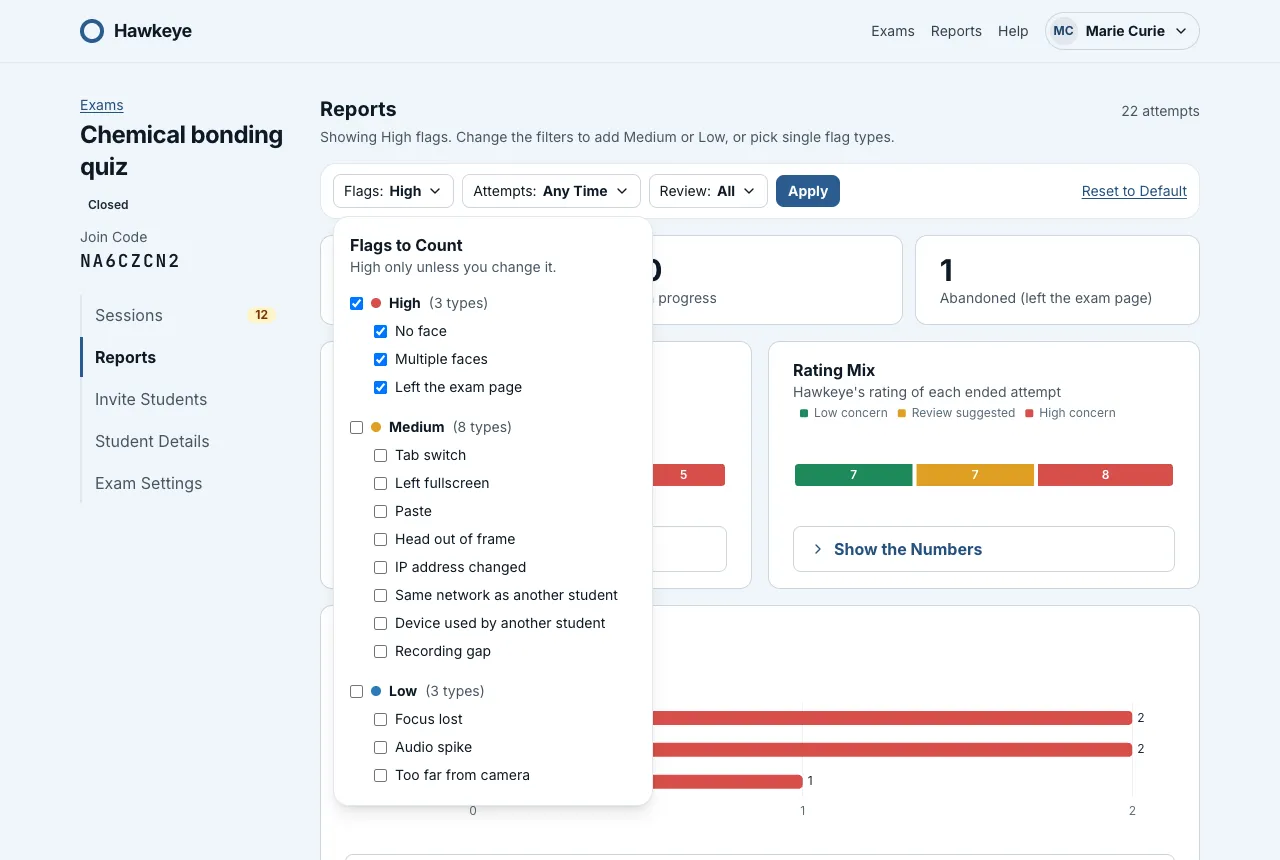
You can also limit a report to a date range (Attempts or Exams Opening) and to attempts you haven’t reviewed, cleared or flagged (Review). Select Reset to Default to go back to High flags only.
Filters are part of the page address. To keep a filtered report, bookmark the page. Hawkeye doesn’t save filters, so the next visit starts with High flags again.
Reports across your exams
Select Reports at the top of any page.
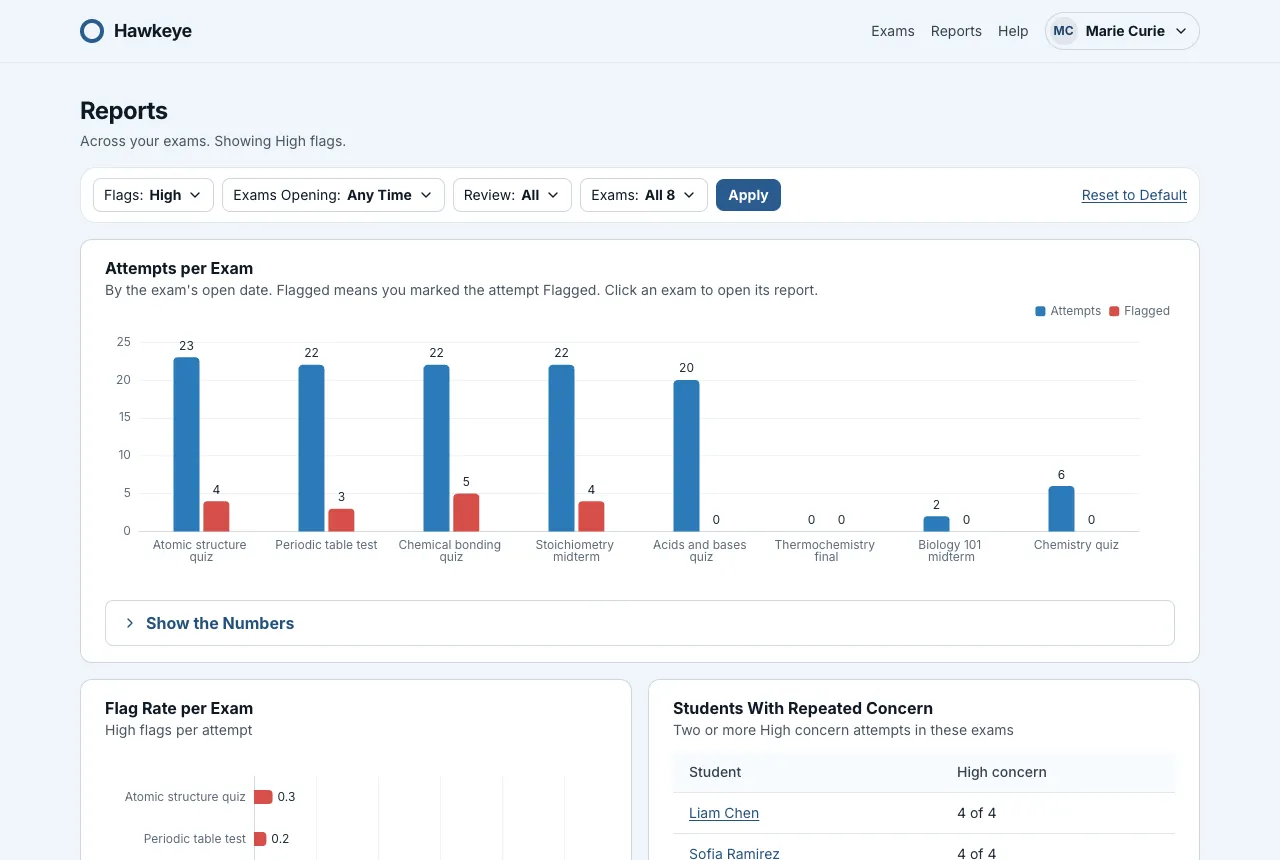
- Attempts per Exam: attempts and attempts you flagged, for each exam, by the date it opens. Select an exam’s bars to open its report.
- Flag Rate per Exam: counted flags per attempt, so exams of different sizes compare fairly.
- Students With Repeated Concern: students with two or more High concern attempts. Select a name to see that student’s report.
Use the Exams filter to compare only some of your exams.
A student’s report
A student’s report shows each of their attempts in your exams: when it started, Hawkeye’s rating, how many flags your filter counts and how many flags it has in all. Hawkeye rates an attempt from all of its flags, so an attempt can be High concern with no High flags, for example with three Medium flags. In the chart, the flags your filter counts are colored by severity (High red, Medium amber, Low blue), every other flag is gray, and the number on top counts all flags. The rating is under each bar. Select an attempt to review it. You see only attempts in your own exams.
Read Review an attempt to watch the recordings.