During the exam
What Hawkeye shows and records while you take the exam, what causes a flag, and how to finish.
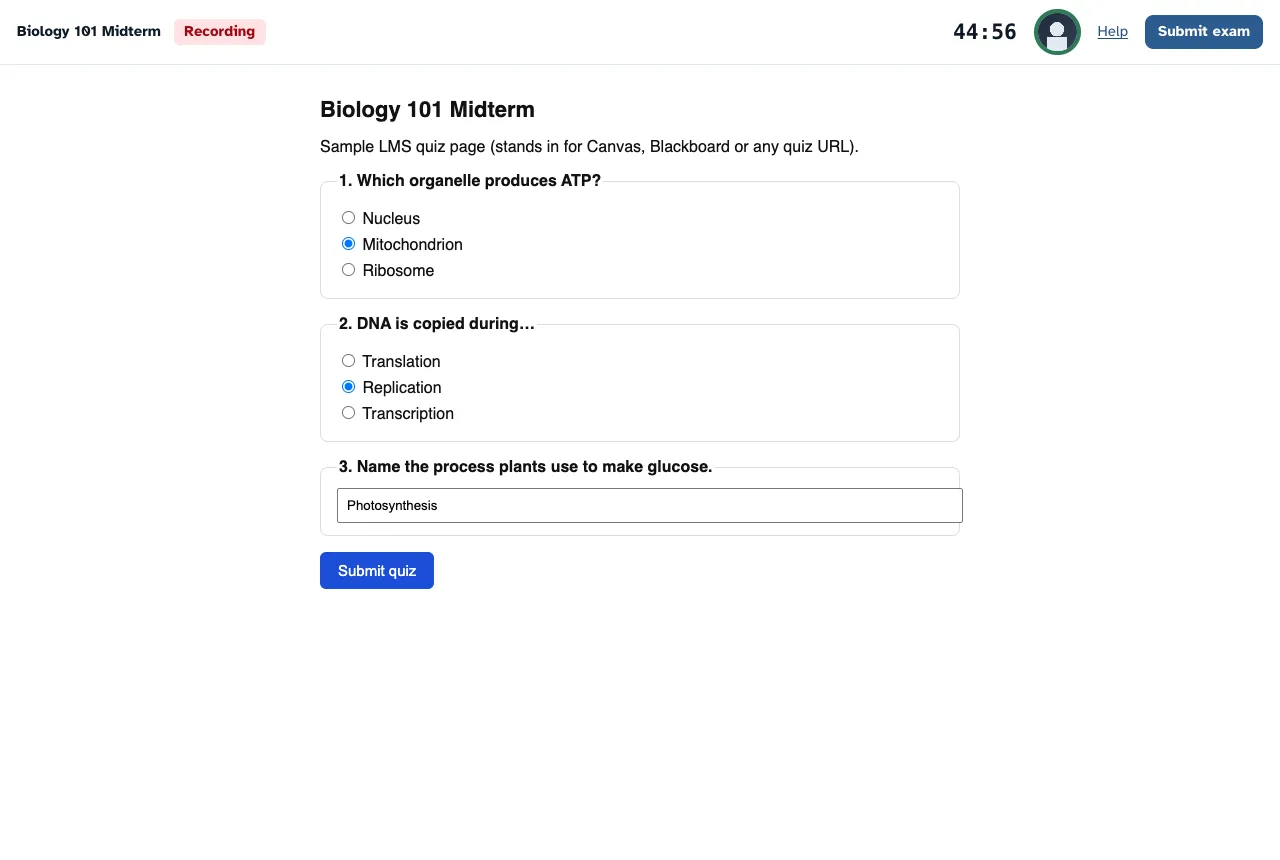
After you press Start the Exam, Hawkeye records your webcam, your microphone and your entire screen. The top bar shows a red Recording badge, the timer and your camera picture.
The exam opens
First you see “Preparing Your Exam…”. The exam opens when your first recording reaches the server. This takes a few seconds.
Your exam opens in one of two ways:
- Inside Hawkeye. The exam page fills the window below the top bar, and Hawkeye is in fullscreen. If the exam has an access code, Hawkeye shows it in a bar under the top bar. Press Copy to copy it.
- In its own window. Press Open the Exam. If the exam has an access code, Hawkeye shows it above the button. Press Copy Code to copy it. Keep the Hawkeye window open: it records while you work.
The timer
The timer starts when the exam opens, not when you press Start the Exam. Until then it shows “Not Started”. If your exam opens in its own window, the timer starts when you first press Open the Exam. If you reopen the window, the timer does not start again.
When the timer reaches zero, Hawkeye ends the exam and saves your recording.
What causes a flag
A flag marks a moment in the recording for your educator to check. Your educator decides what each flag means. Hawkeye adds a flag when:
- you go to another tab, or the exam page is hidden;
- you click into another window or app. Clicking into a quiz inside Hawkeye does not add a flag;
- you leave fullscreen (only for exams inside Hawkeye);
- you paste on the Hawkeye page (only for exams that open in their own window). Hawkeye cannot see a paste inside the quiz itself, but your screen recording shows it;
- the microphone hears a sound much louder than the normal sound of your room;
- the camera sees no face, or more than one face;
- your head is partly outside the camera picture, or you sit too far from the camera;
- your screen sharing stops, your camera cannot start, or the face checks stop working. Hawkeye shows you a message, and your educator sees these as setup problems;
- you close or reload the Hawkeye window. This also ends your session.
When you go to another tab or window, or leave fullscreen, Hawkeye takes one screenshot of your shared screen one second later. It takes at most one screenshot every 30 seconds. Your educator sees the screenshot with the flag. Hawkeye deletes it 30 days after the exam.
Your educator chooses how readily the face checks add a flag. Your educator can also turn the face checks off.
If your exam opens in its own window, Hawkeye does not add a flag when you move between the Hawkeye window and the exam window. Your screen recording shows the exam window.
If you leave fullscreen by accident, press Return to Fullscreen at the top of the page. The flag stays in the recording.
If the page says “Some of the recording could not be uploaded”, check your connection and keep working.
Finish the exam
Submit your answers in the exam
Use the exam’s own submit button first.
End the exam in Hawkeye
Press Submit Exam in the top bar. If your exam opened in its own window, you can also press I’ve Submitted the Quiz: End Exam.
Wait for the done page
Hawkeye saves your recording. Then it shows “Exam Submitted”.
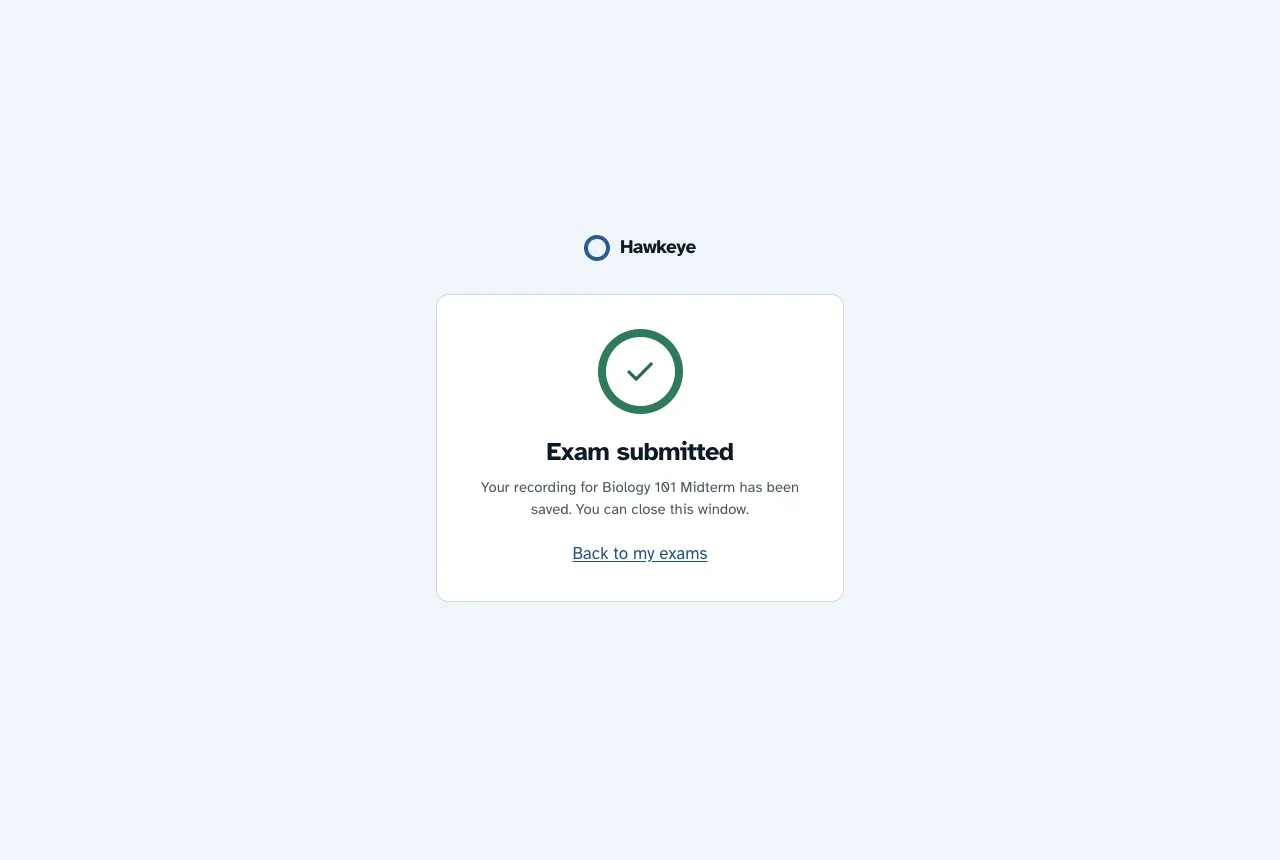
After you submit, the exam shows under Past on My Exams. To learn what your educator sees, read What Hawkeye records.