Fix common problems
What to do when the camera, the screen share, the face photo, the exam window or Canvas does not work.
Find the message that you see, then do the steps. If a problem stops you from taking your exam, write to support@hawkeye.com. Tell us the exam title and the message on your screen.
Camera or microphone blocked
The badge shows “Blocked” and the page says: “The camera or microphone did not start.”
Allow the camera and the microphone
Open your browser’s site settings for Hawkeye. Allow both.
Close other apps that use the camera
Press Allow Camera and Microphone again
Screen share refused
The badge shows “Share the entire screen”, and the page says: “Please share your entire screen, not a window or a tab.”
Hawkeye accepts only your entire screen. Press Share Screen again. In your browser’s dialog, choose your entire screen.
If the page says “Screen sharing was refused.”, press Share Screen again and allow the share.
Face photo problems
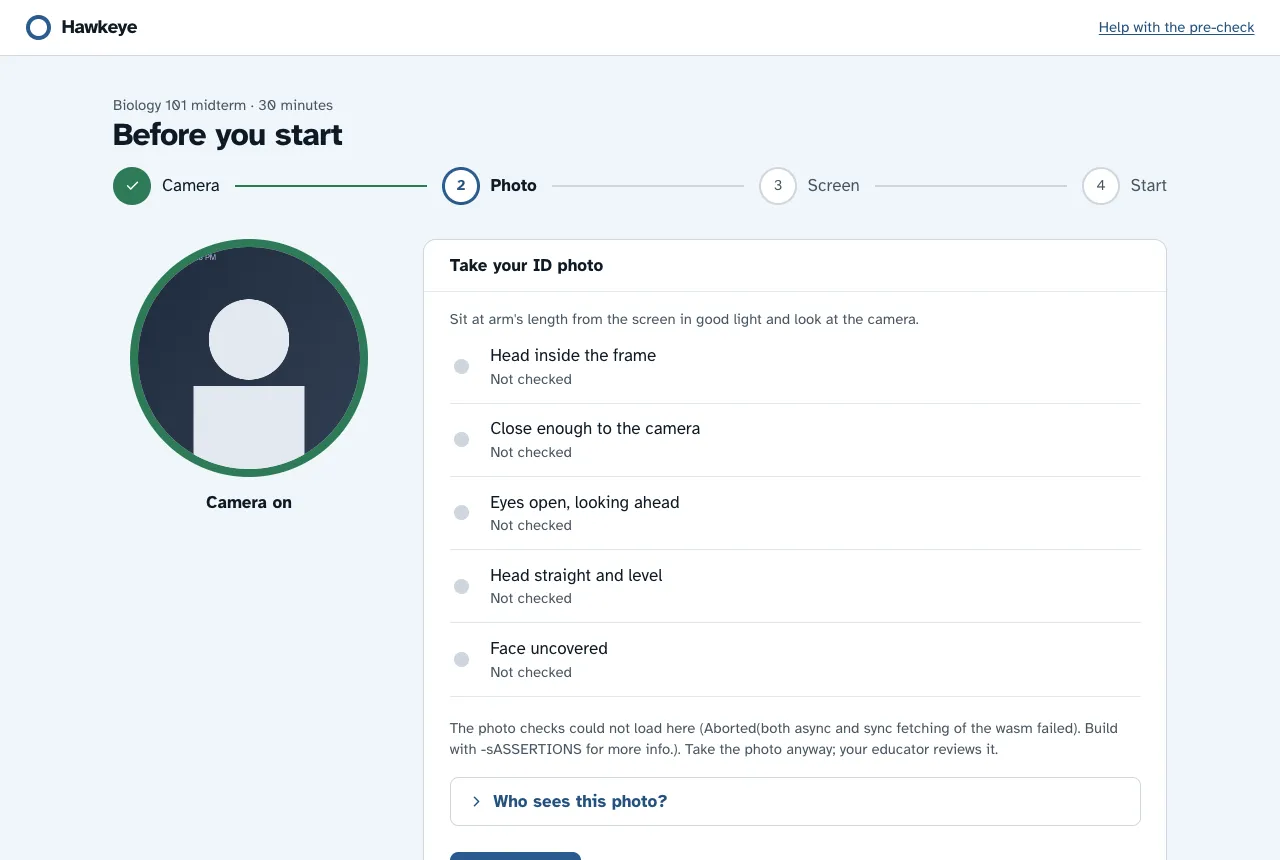
Take Photo stays off. The button works only when every check shows “OK”. Try these steps:
- Sit at arm’s length from the screen.
- Put the light in front of you.
- Look straight at the camera, with your eyes open.
- Keep your head straight and level.
- Remove a mask, a cap or sunglasses.
The checks load slowly. The first time, the checks download to your browser. The page shows the progress. Some browsers run the checks more slowly. The page then says “slower here”.
The checks could not load. The page says “The photo checks could not load here”. Press Take Photo anyway. Your educator reviews the photo.
The photo could not be saved. Check your internet connection. Then press Take Photo again.
“photo must be taken before the exam starts” shows when you press Start the Exam without a photo. Go back and take the photo.
The exam has not opened yet
The page says that the exam “hasn’t opened yet” and shows a countdown. Keep the page open. When the countdown reaches zero, the page moves on to the pre-check.
If the page says “This Exam Has Closed”, the time window ended. Ask your educator if you need another chance.
The join code does not work
Hawkeye says the code “doesn’t match any exam”. Check the code in your invite email and type it again.
Recording problems during the exam
“Some of the recording could not be uploaded.” Check your internet connection and keep working.
“Screen sharing stopped. Your educator will see this.” You cannot turn sharing on again during the exam. Keep working, and tell your educator.
“Session Ended”. Your session ended before you submitted, for example because the Hawkeye window closed or reloaded. Your educator sees what was recorded, and a “Left the exam page” flag. Contact your educator.
“The exam could not be opened”. Write to support@hawkeye.com with the exam title. Do not reload or close the page: that ends your exam.
Canvas problems
“Open Hawkeye in a New Window”. Your browser blocks Hawkeye’s cookies inside Canvas. Press Open Hawkeye in a New Window. Hawkeye signs you in in its own window.
“This Launch Couldn’t Be Verified”. Go back to Canvas and open the assignment again. If this keeps happening, tell your instructor.
The Open Hawkeye button does not work. The button works one time, for two minutes. Open the assignment in Canvas again.
“No Attempts Left”. You used every attempt that Canvas allows on this quiz. Ask your instructor if you need another attempt.
“Not Set Up Yet”. Your instructor has not set up this exam in Hawkeye. Try again later.
“Hawkeye Can’t Sign You In”. Read the message below the heading. For example, if your Canvas email already has a Hawkeye account, sign in to Hawkeye directly with that account.
For more about Canvas exams, read Take an exam from Canvas.