The pre-check, step by step
Each pre-check step before your exam starts, what you see on the screen, and what to do.
The pre-check gets your camera, microphone and screen ready before the exam. It has four steps. If your educator asks for extra details, there is one more step at the start. The top of the page shows the steps as a timeline. Finished steps have a check mark, and the current step has a blue outline. From the camera step on, your camera picture shows in a circle beside each step.
Hawkeye does not record during the pre-check. Recording starts when you press Start the Exam.
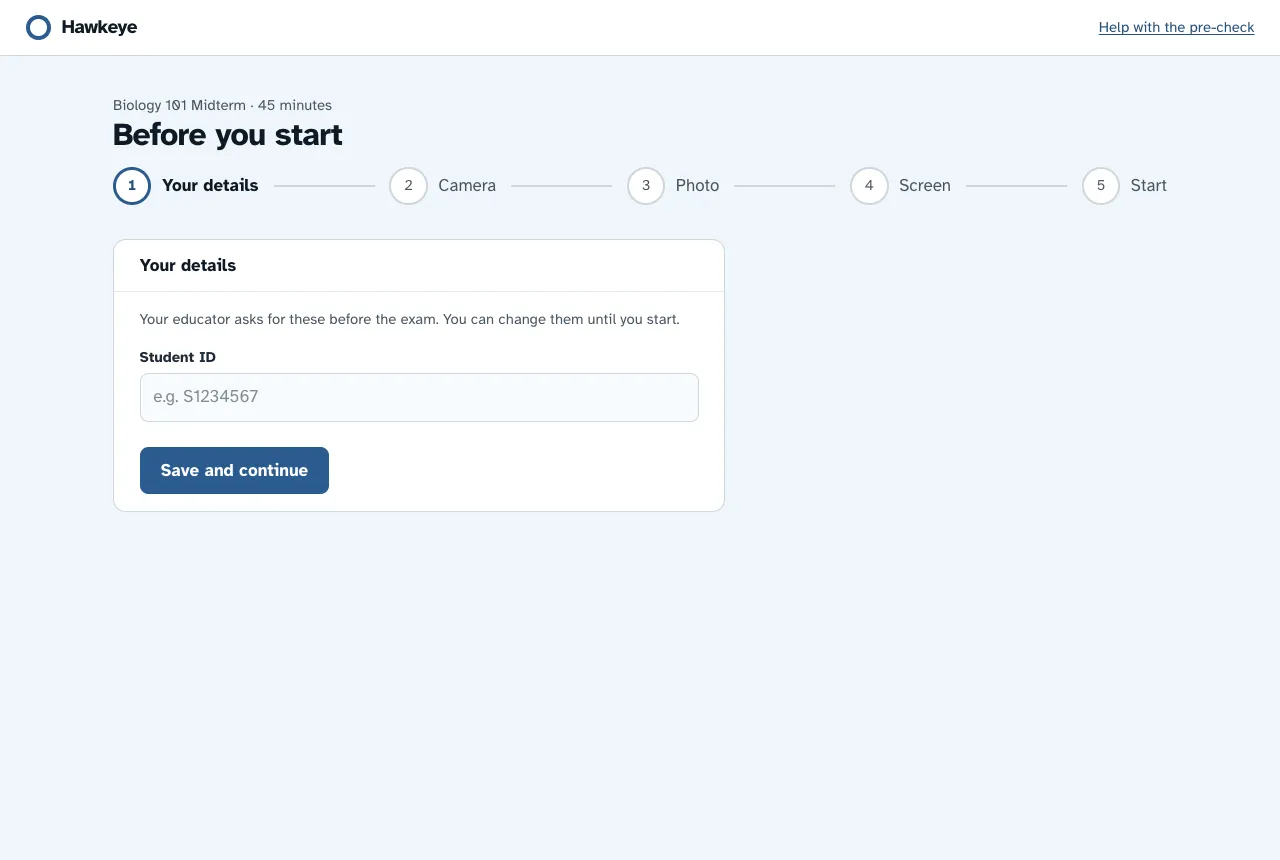
Your details (some exams only)
Your educator can ask for a few details, such as a student ID. Fill in each field. Fields marked “(Optional)” can stay empty. Press Save and Continue.
You can change your details until you start the exam. After that, they are fixed.
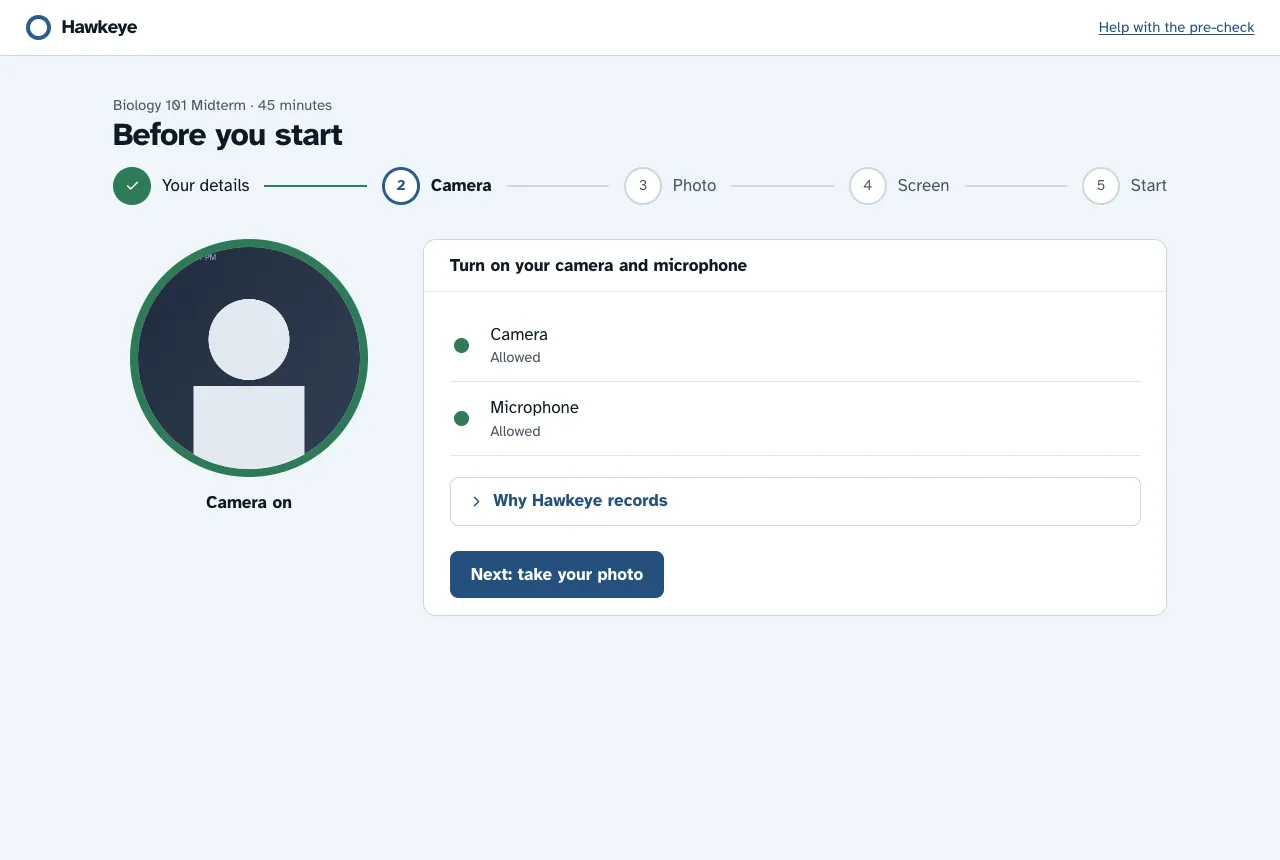
Turn on your camera and microphone
Press Allow Camera and Microphone
Your browser asks for permission.
Allow both the camera and the microphone
The camera and the microphone show “Allowed”, and your camera picture shows in the circle. The Allow button goes away.
Press Next: Take Your Face Photo
If they show “Blocked”, read Fix common problems.
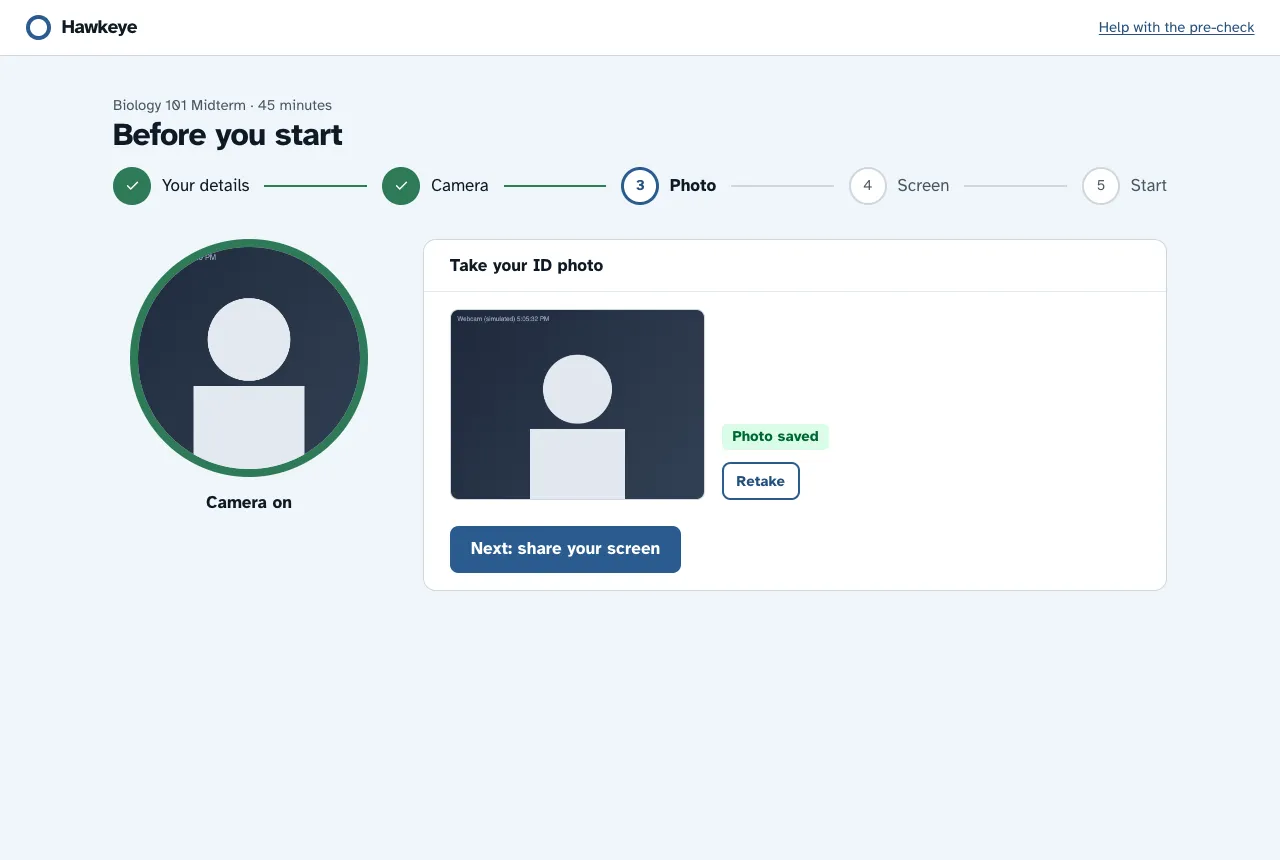
Take your face photo
Your educator sees this photo next to your recording.
Sit at arm's length from the screen in good light
Look at the camera.
Wait for the checks
Your browser checks your picture every few seconds. Each check shows “OK” or “Adjust”.
Adjust until every check shows OK
The checks are: head inside the frame, close enough to the camera, eyes open and looking ahead, head straight and level, and face uncovered.
Press Take Photo
The button works only when every check shows “OK”. The page then shows only your photo, marked “Photo Saved”.
Press Next: Share Your Screen
To try again, press Retake.
Some exams ask for fewer checks. Some exams make the photo optional. The page tells you when the photo is optional.
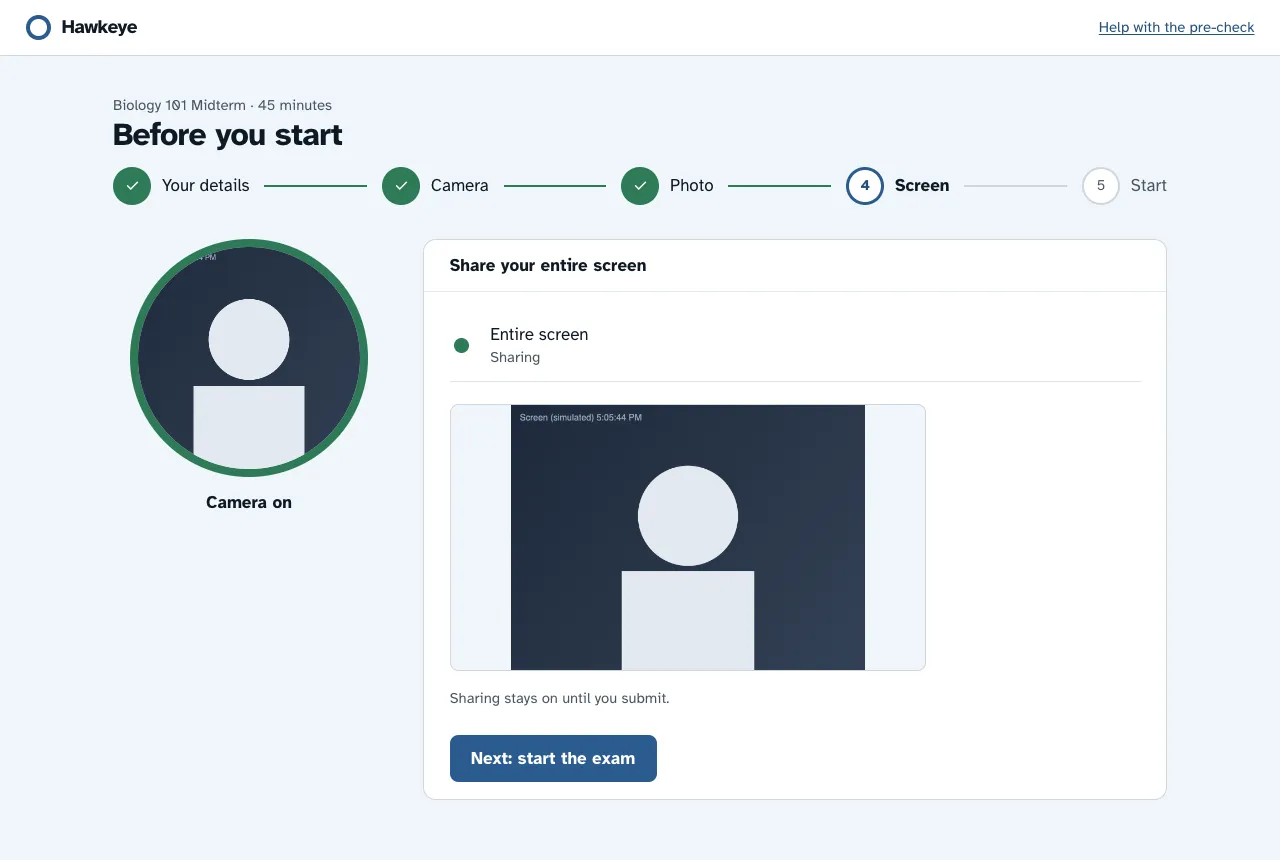
Share your entire screen
Press Share Screen
Your browser asks what to share.
Choose your entire screen
Do not choose a window or a tab. Hawkeye does not accept them.
Press Next: Start the Exam
The screen check shows “Sharing”, and the Share Screen button goes away.
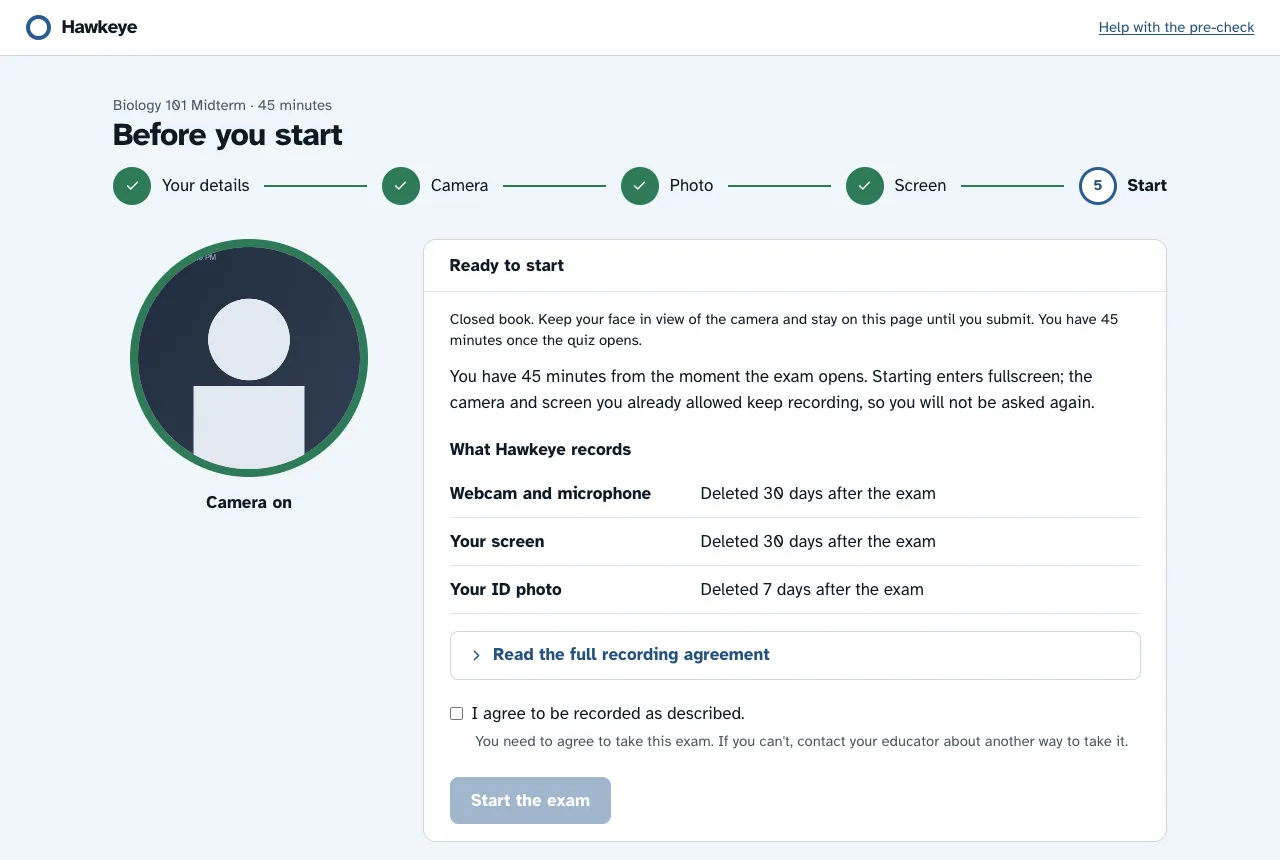
Ready to start
Read your educator’s instructions. The page tells you how many minutes you have. Your time starts when the exam opens, not when you press the button.
The list “What Hawkeye Records” tells you what Hawkeye records and when Hawkeye deletes it. Hawkeye deletes your face photo and your recordings 30 days after the exam. To read the full recording agreement, press Read the Full Recording Agreement. It says that your educator keeps the exam record and can keep copies, and it links to the Privacy Policy.
Tick I agree to be recorded as described. Start the Exam stays off until you tick the box. If you cannot agree, do not start. Contact your educator about another way to take it.
Press Start the Exam. Hawkeye does not ask for the camera or the screen again.
For most exams, Hawkeye then goes to fullscreen. If your exam opens in its own window, Hawkeye does not go to fullscreen.
Next: During the exam.