Find and join your exam
Open your exam from the invite email, from My Exams, or with a join code.
You can open an exam in three ways: from the invite email, from My Exams, or with a join code. If your exam is in Canvas, read Take an exam from Canvas instead.
Your invite email
Your educator can send you an invite email. The email has a link to the exam and a join code. When the exam has a time window, the email shows when it opens and closes, in the exam’s time zone.
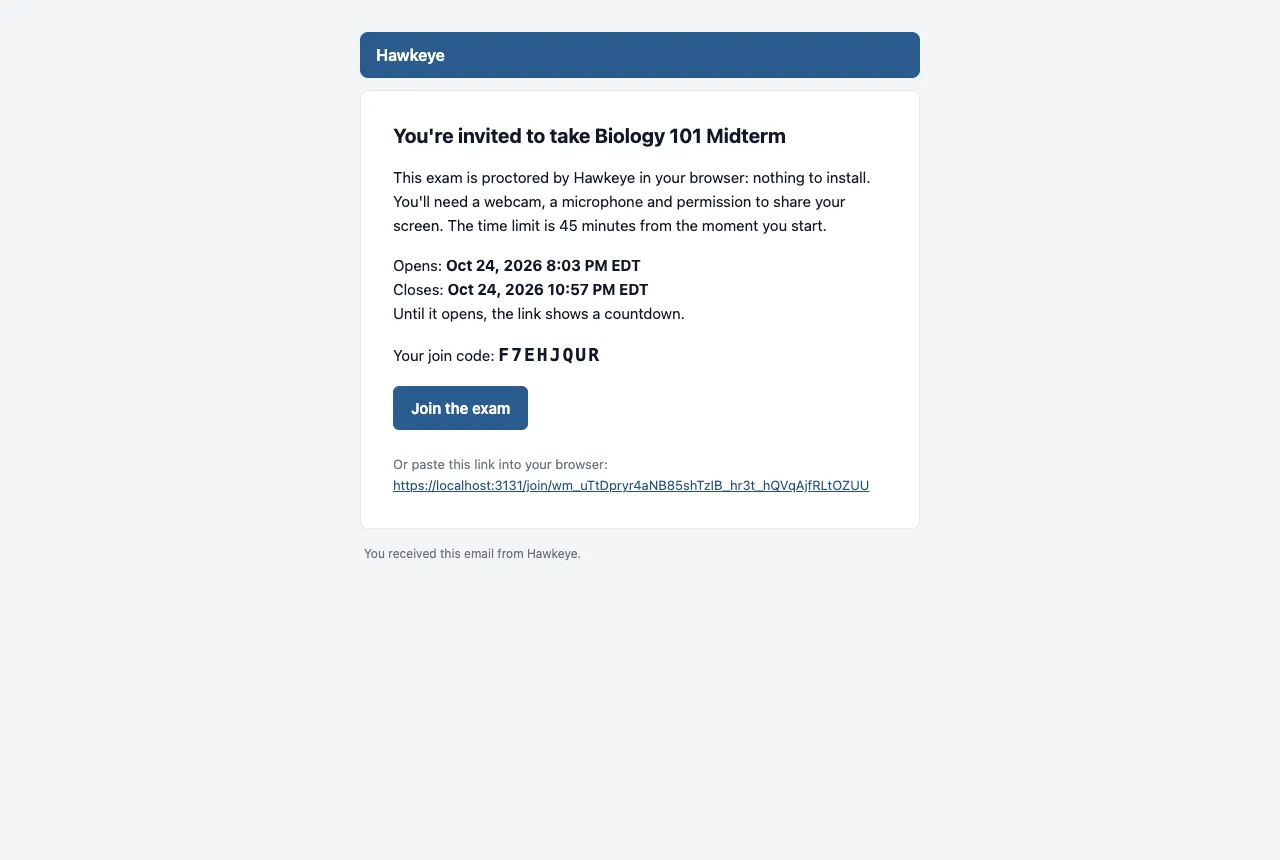
When the exam opens, Hawkeye can send you a second email. It says the exam is open now, and it has the join code and a link to the join page.
Create your account
Open the link in your invite email
If you do not have an account, Hawkeye asks you to sign in. Choose to sign up.
Enter your first name, last name, email and a password
Your educator sees your name next to your recording. Your educator may have filled in your name for you. You can change it before you save.
Confirm your email address
Hawkeye sends you an email with a confirmation link. Open the link. Hawkeye then takes you back to your exam.
My exams
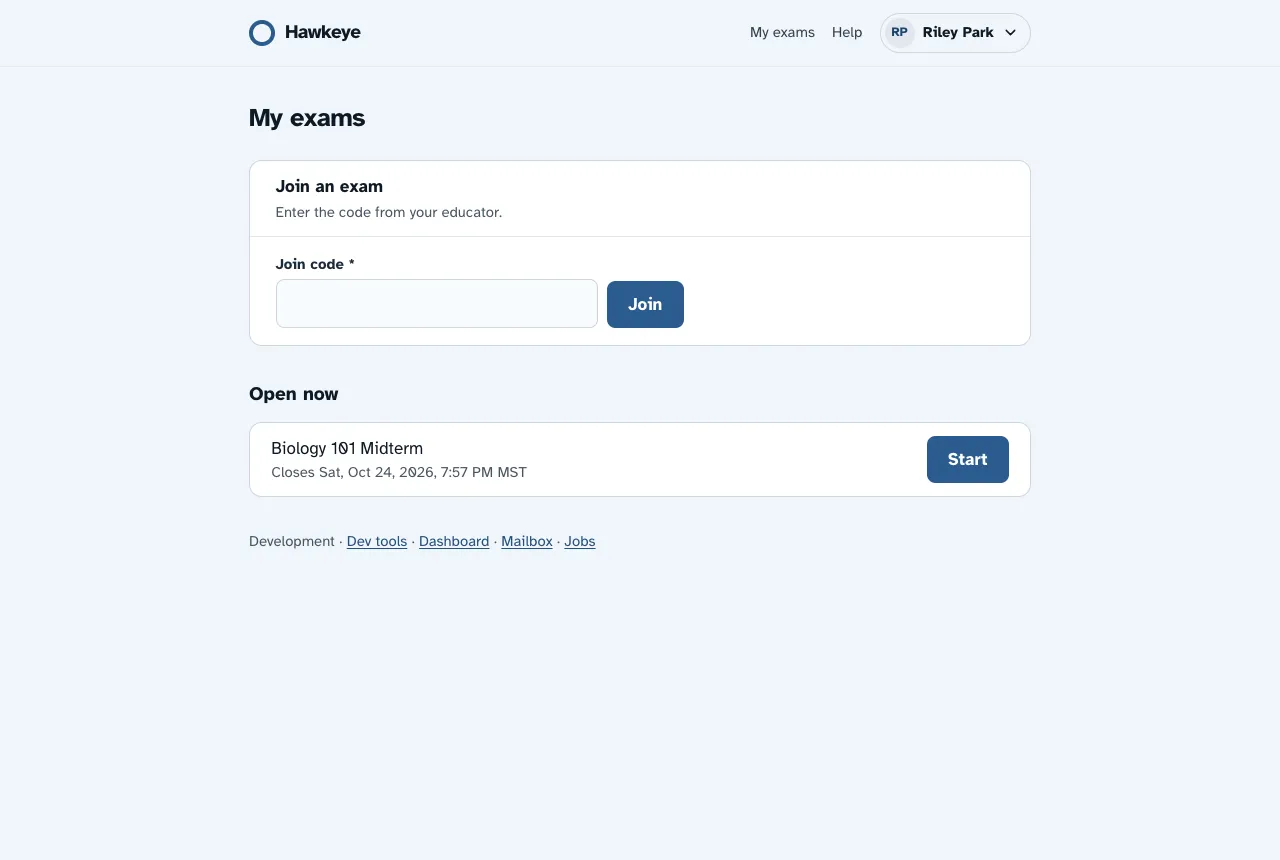
After you sign in, Hawkeye shows My Exams. At the top is the Join an Exam box. Under it, your exams are in three groups:
- Upcoming: the exam opens later. A countdown shows the time until it opens. Times show in your own time zone.
- Open Now: you can take the exam. Press Start. If you already started, press Resume. For a Canvas exam, press Open in Canvas.
- Past Exams: exams that you submitted, sessions that ended before you submitted, and exams that closed before you started them. This group is folded. Select Past Exams to show it.
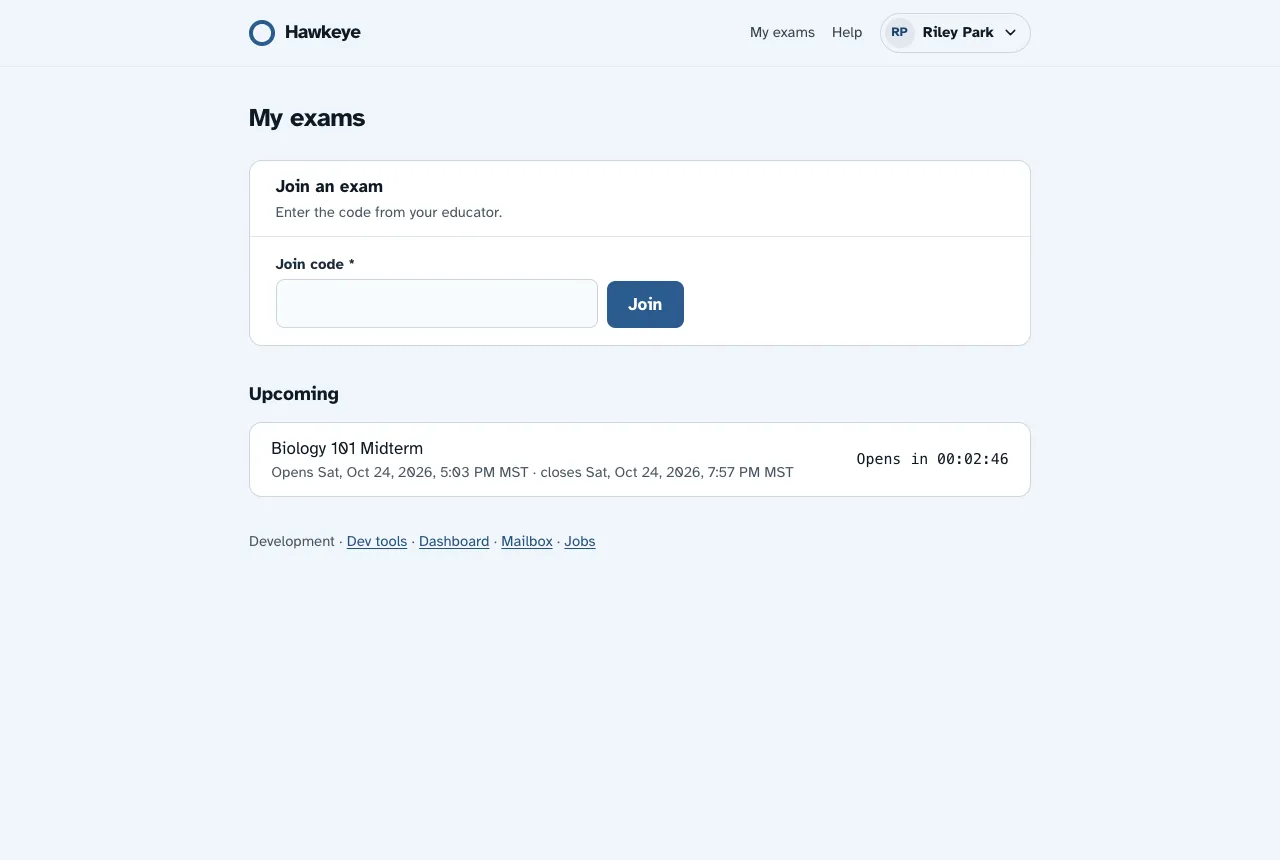
When the countdown reaches zero, the page reloads and the exam moves to Open Now.
Join with a code
Find the join code
The code is in your invite email, or your educator gives it to you.
Enter the code
On My Exams, type the code in the Join an Exam box. Then press Join.
If Hawkeye says the code “doesn’t match any exam”, check the code and type it again.
If the exam is not open yet
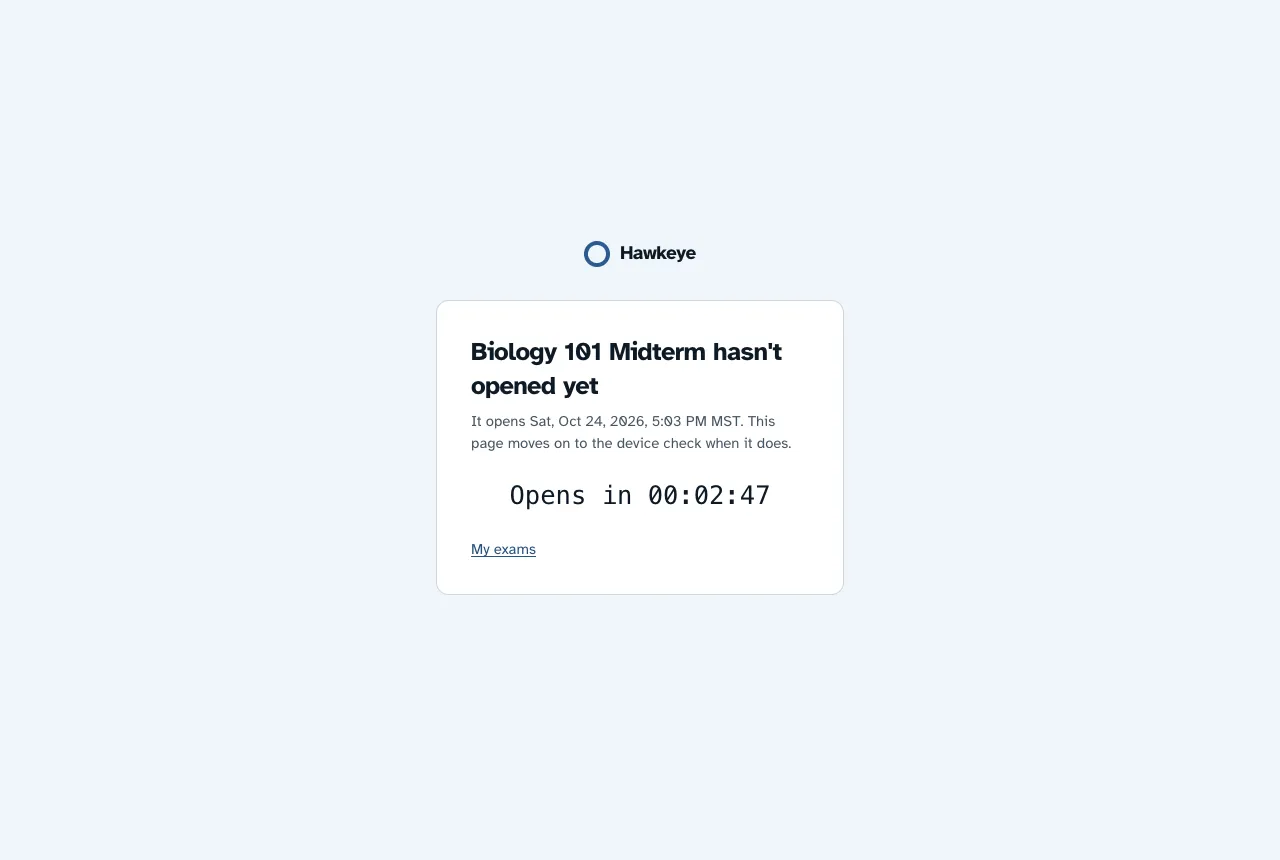
You can open the exam before its window opens. Hawkeye then shows a countdown. It does not show the pre-check yet. Keep the page open. When the countdown reaches zero, the page moves on to the pre-check.
If the page says “This exam has closed”, the time window ended before you started. Ask your educator if you need another chance.
Next: The pre-check, step by step.