Create an exam
Set up an exam with its quiz link, time limit, exam window, time zone and monitoring settings.
An exam in Hawkeye points to a quiz in your learning system, for example Canvas or Blackboard. Hawkeye records the students while they take that quiz.
Create the exam
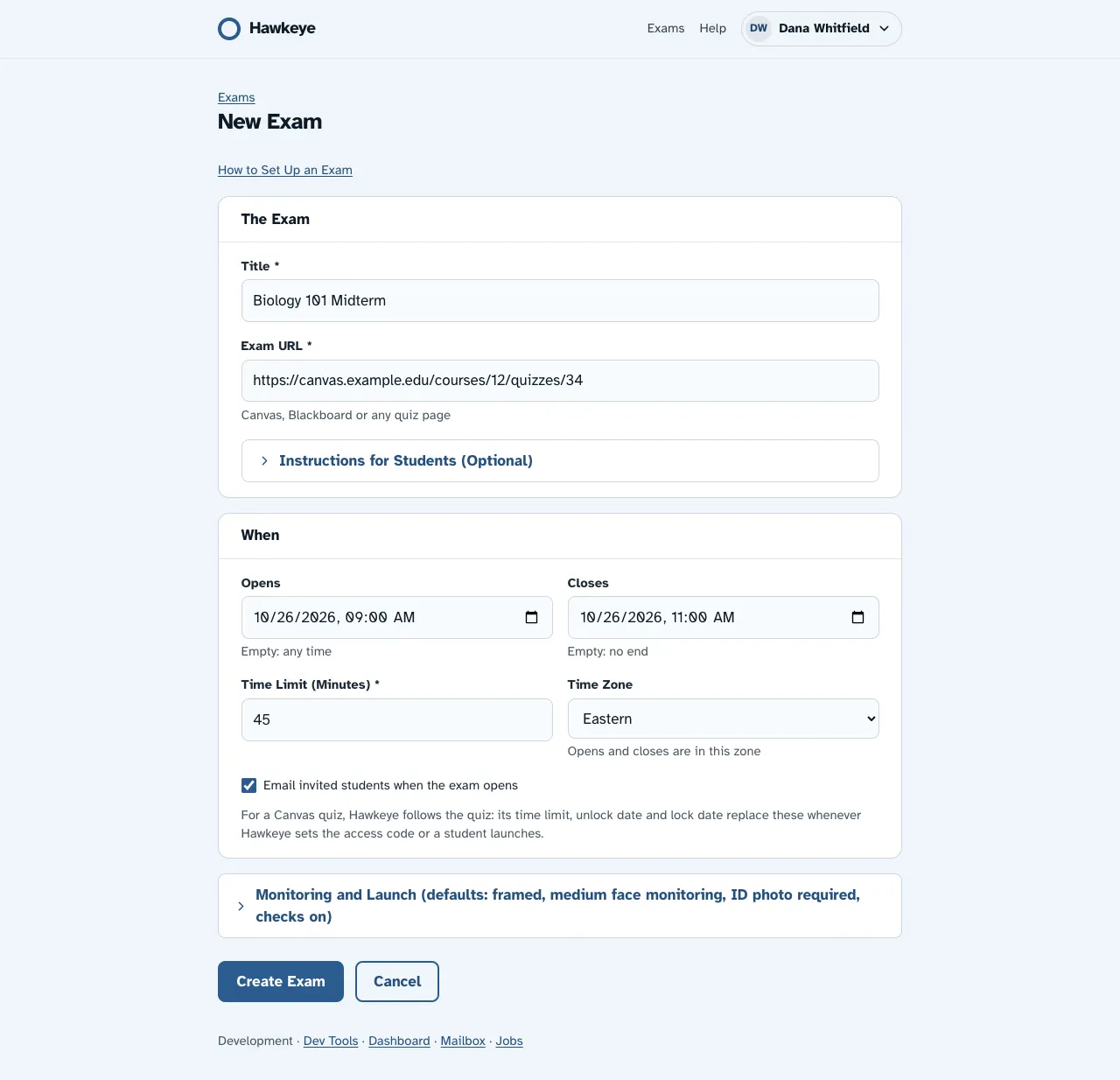
The form has two cards, The Exam and When, and a folded Monitoring and Launch section.
Open the form
On the Exams page, select New Exam.
Name the exam
In The Exam, type a Title. Students see the title in their emails and on their pages.
Add the quiz link
Paste the quiz address into Exam URL.
Add instructions
Optional: open Instructions for Students (Optional) and type your Instructions. Students read them on the last step of the pre-check, before they start.
Set the exam window
In When, optional: set Opens and Closes. Students can start only inside this window. Leave Opens empty to let students start at any time. Leave Closes empty for no end.
Set the time limit
Type the Time Limit (Minutes), from 1 to 600.
Choose the time zone
Select the Time Zone. Hawkeye reads the open and close times in this zone. Pages and emails show the times in this zone too.
Check the monitoring settings
Optional: open Monitoring and Launch to change the launch mode and the monitoring settings (below). The title of the section lists the defaults.
Save
Select Create Exam.
The “exam is open” email
Email invited students when the exam opens is on by default. At the open time, Hawkeye emails each invited student that the exam is open. The email contains the join code.
Hawkeye does not send this email to students who already finished the exam. If you change the open time, Hawkeye sends the email at the new time. Each student gets this email only once.
Monitoring and launch settings
| Setting | Choices |
|---|---|
| Launch Mode | Framed in the exam page (default) or New window (when the LMS refuses framing). Read Check the launch mode below. |
| Face Monitoring | Off, Low: only long or repeated problems, Medium (default), High: flag quickly. Every 2 seconds Hawkeye checks for no face, more than one face, a head partly outside the camera picture, or a student too far from the camera. A flag needs several failed checks in a row: about 4 seconds on High, 6 on Medium and 10 on Low. For open-book exams, choose Low or Off, because students who read may look down. |
| Face Photo | Required: every photo check must pass (default), Relaxed: head in frame and close enough, Not required |
| Network and Device Checks | On (default) or Off. When on, Hawkeye flags a changed IP address, a network shared with another student, and a device shared with another student. |
| One Monitor | Off (default) or Required: Chrome or Edge, one monitor. When required, students must use Chrome or Edge, because other browsers can’t tell Hawkeye how many monitors are connected. The pre-check doesn’t continue while a second monitor is connected. If a student connects one during the exam, Hawkeye flags it as Second monitor (High) and tells the student to disconnect it. |
| LMS Access Code (Optional) | Type the quiz password from your learning system. Students see it only after they finish the check-in. |
Hawkeye never puts the exam URL or the access code on the pre-check page. A student gets them only after Hawkeye receives the first screen and webcam recordings. If the exam asks for a face photo, Hawkeye also waits for the photo.
The exam page
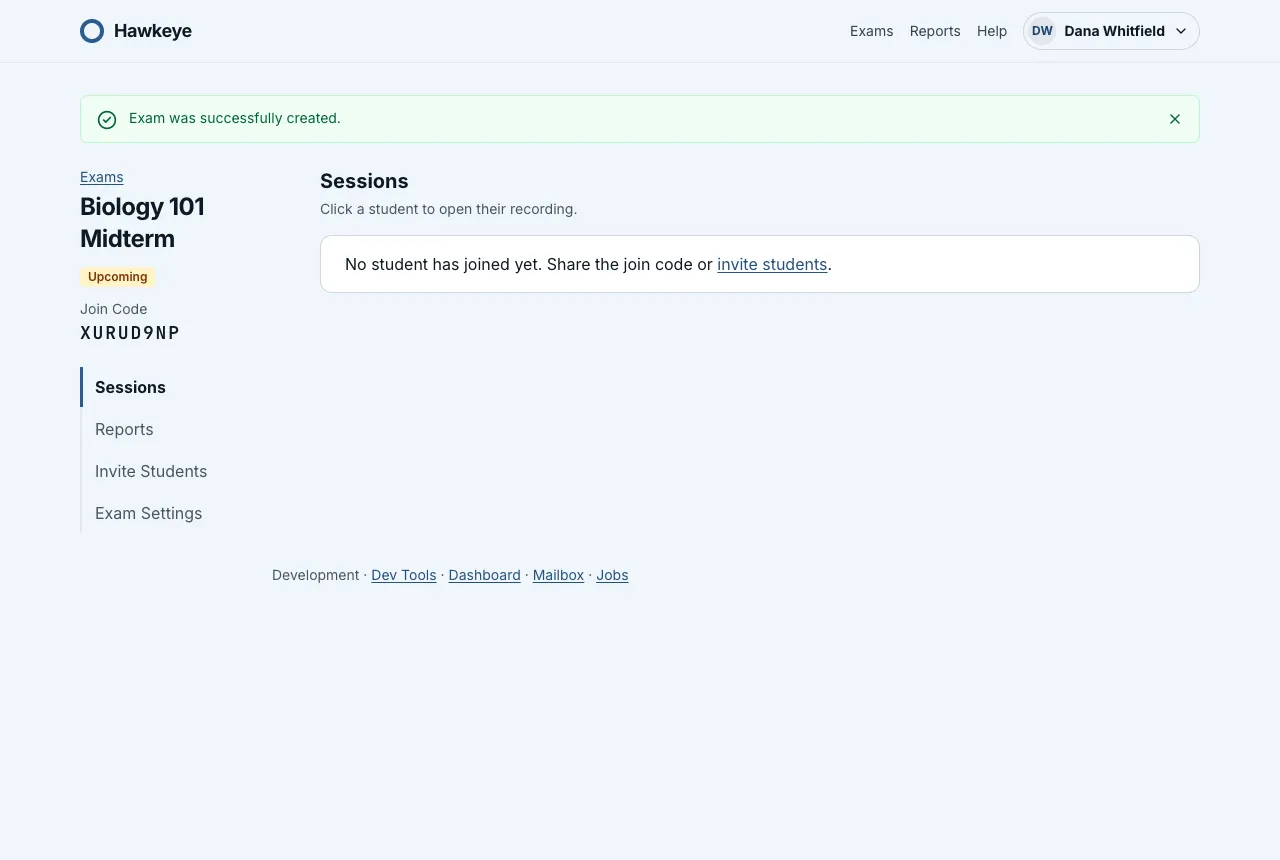
After you save, Hawkeye opens the exam page. The title, the status and the Join Code are at the top left. Students type the join code to enter the exam.
Below them, a rail lists the sections of the exam page:
- Sessions: the students who joined. Hawkeye opens this section first. Its count shows how many sessions wait for your review. Read Review an attempt.
- Invite Students: read Invite students.
- Exam Settings: your settings, with the times and the zone abbreviation, for example EDT. Open Monitoring and Launch to find the Launch Questionnaire: read Ask a launch questionnaire.
- Canvas: only for a Canvas exam. Read Use Hawkeye with Canvas.
Change or delete the exam
To change the exam, open Exam Settings and select Edit Settings. Make your changes, then select Save Exam.
To remove the exam, open Exam Settings. At the bottom, under Delete This Exam, select Delete Exam.
Check the launch mode
Some quiz sites do not let other sites show them in a frame. To test your quiz link:
- On the exam page, open Exam Settings.
- Open Monitoring and Launch.
- Select Check Framing.
- Read the result. It says that the quiz can be shown inside Hawkeye, that it can’t, or that Hawkeye couldn’t check it, and what to do next. Select Show Details to see the reasons.
If the quiz can’t be shown inside Hawkeye, edit the exam and set Launch Mode to New window (when the LMS refuses framing). If Hawkeye couldn’t check the quiz, open the exam as a test student to see whether the quiz shows.